

Important
The SingleStore 9.1 release candidate (RC) gives you the opportunity to preview, evaluate, and provide feedback on new and upcoming features prior to their general availability. In the interim, SingleStore 9.0 is recommended for production workloads, which can later be upgraded to SingleStore 9.1.
Secure Access to Flow
On this page
To protect Flow from unauthorized access, isolate it from public networks and allow access only through controlled entry points.
Two commonly used configurations for securing Flow are:
-
Linux Setup: Mac to Linux Flow server via a bastion host
-
Windows Setup: Windows to Windows Flow server via Remote Desktop Protocol (RDP)
Linux Setup: Mac to Linux Flow Server via a Bastion Host
This setup uses a bastion host - a specialized server used to provide access to a private network from an external network (such as the internet).
Architecture
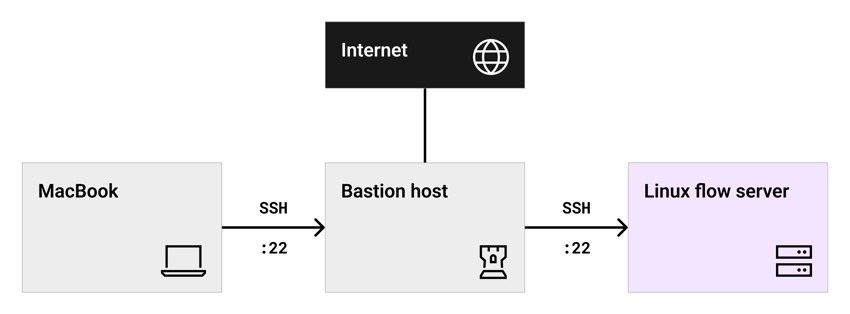
In this setup:
-
A local machine (e.
g. , a Mac) connects to a Linux bastion host. -
The bastion host has internal network access to the Flow server.
-
Flow can be accessed either directly from the bastion host or via SSH tunneling.
Steps
-
Local Mac Setup
-
Generate an SSH key pair (if not already created):
ssh-keygen -t rsa -b 2048 -f ~/.ssh/bastion_keyThis command generates:
-
A private key (
bastion_) to be stored securelykey -
A public key to be copied to the bastion host
-
-
Install Google Chrome to access Flow.
-
-
Bastion Host Setup
The bastion host can be any server exposed to the internet (e.
g. , a cloud instance or physical server). In cloud environments (AWS, Azure, GCP), the bastion host is typically placed in a public subnet, while the Flow server resides in a private subnet. -
Install the public SSH key on the bastion host
Copy the public key from the local machine to the bastion host, either manually or by running the following command:
ssh-copy-id -i ~/.ssh/bastion_key.pub your-username@bastion-host-ip -
Disable password-based login on the bastion host
sudo nano /etc/ssh/sshd_configPasswordAuthentication no # Disable password auth -
Restrict login to specific users
Add the following to
/etc/ssh/sshd_:config AllowUsers your-username # Only allow a specific user -
Restart SSH service to apply changes
sudo systemctl restart ssh -
Configure firewall / security group
SSH access to the bastion host can be restricted to specific IP ranges, such as an office public IP address or VPN endpoints.
Tools such as ufw(Uncomplicated Firewall) oriptablescan be used to enforce these restrictions.If using
ufw, run:sudo ufw allow from <your-office-ip> to any port 22sudo ufw enableIf using a cloud provider like AWS, Azure or Google Cloud, set up a Security Group (AWS) or Firewall Rules (GCP) to allow only specific IP addresses to SSH into the bastion host.
-
-
Flow Server Setup
The Flow server must only accept connections from the bastion host.
To enforce this, configure a firewall or security group. If using
ufw, run the following commands on the Flow server:sudo ufw default deny incomingsudo ufw allow from <bastion-private-ip> to any port 22sudo ufw enableIf using a cloud provider like AWS, Azure or Google Cloud, modify the Flow server’s security group/firewall rules to only accept inbound connections from the bastion host’s internal IP address.
For example, for AWS, allow SSH on port 22 from the IP of the bastion host. -
Accessing Flow
Option 1: Direct SSH from bastion host
On the bastion host, run:
ssh <user>@<flow_server_private_ip>Option 2: SSH Tunneling or Port Forwarding
On the local Mac, create an SSH tunnel:
ssh -i ~/.ssh/bastion_key -L 8081:flow_server_private_ip:8081 <user>@<bastion_host>This command creates a local port that forwards traffic to the Flow server's HTTP ports (e.
g. , 8081 for Ingest, 8084 for XL Ingest). Note: Ensure that network and firewall rules allow the bastion host's private IP to reach the Flow server’s HTTP ports.
Monitoring and Logging
-
Enable logging for SSH connections on the bastion host.
This can be done by configuring /etc/ssh/sshd_:config LogLevel VERBOSE
-
Ensure all connections and activities are logged (e.
g. , via Syslog or CloudTrail in AWS).
-
Consider setting up two-factor authentication (2FA) for SSH or using a VPN in conjunction with the bastion host for added security.
Security Best Practices
-
Update and Patch Regularly: Ensure that the bastion host is always up-to-date with security patches.
-
Use Intrusion Detection Systems (IDS): Tools like Fail2Ban can help detect and block brute force or suspicious login attempts.
-
Limit SSH Access: Limit the number of users who can access the bastion host and configure role-based access for administrative functions.
-
Harden SSH Configurations: Implement other SSH security best practices, such as disabling root login and using strong key-based authentication.
Windows Setup: Windows to Windows Flow Server via RDP
This setup uses Windows Remote Desktop Protocol (RDP) to connect to a Flow server running on Windows.
Architecture
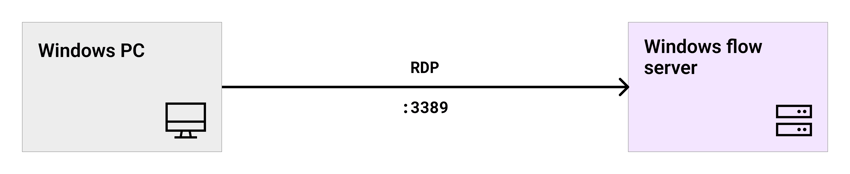
In this setup:
-
A Windows PC on the corporate network or connected via VPN is used to access the Flow server.
-
Connection to the Windows Flow server is established using RDP over a private network, VPN, or Remote Desktop Gateway (RD Gateway).
Important:
-
RDP (TCP 3389) must never be exposed directly to the public internet.
-
RDP must be restricted in Windows Firewall and any external firewall to VPN address ranges or RD Gateway only.
-
Enforce strong passwords and multi-factor authentication (MFA) for RDP.
Steps
-
From the Windows PC, open Remote Desktop Connection.
-
Connect to the Windows Server using RDP (port 3389).
-
Once logged in, access Flow on Chrome browser on the server.
Optional: Enable Direct Access via Firewall Rules
Windows Firewall can be configured to allow direct access to Flow from specific IP addresses without using RDP.
Important:
-
This option is only for internal or VPN networks.
-
Do not open Flow’s port (e.
g. , 8081) to the public internet, even with IP restrictions. -
If external access is required, use VPN.
On the Windows Flow server:
-
Configure the Windows Firewall
Add a rule in the Windows Firewall to allow incoming connections on the port where Flow is running.
This rule can be configured to allow only one specific IP or a range of IP addresses. To allow incoming connections:
-
Open the Control Panel from the Start menu and click Windows Firewall.
-
In the Windows Firewall window, select Advanced Settings.
-
In the Windows Firewall with Advanced Security window, click Inbound Rules in the left-hand pane.
-
In the right-hand pane, click New Rule….
-
In the Rule Type step, select Port, then click Next.
-
In the Protocol and Ports step, choose TCP.
Under Specific local ports, enter the port number to be enabled - for example, 8081. Click Next. -
In the Action step, select Allow the connection, then click Next.
-
In the Profile step, select only Domain or Private based on the requirement.
Click Next. -
In the Name step, enter a name for the rule and click Finish.
The new rule will now appear in the list of inbound rules.
-
-
(If applicable) Configure the External Firewall
If an external/physical firewall is in place, add a rule to allow incoming connections on the port where Flow is running.
This rule can also be configured to allow only one specific IP or a range of IP addresses.
Last modified: April 1, 2026