

Dashboard Apps
On this page
Note
This is a Preview feature.
SingleStore Dashboard Apps enables users to create, publish, and manage real-time interactive dashboards through the Cloud Portal.
Create and manage dashboard apps using the Cloud Portal.
Publish Dashboard Apps using the Cloud Portal
Create a Dashboard App
Dashboard Apps can be created for shared notebooks only.
-
Using Dashboards in the left navigation
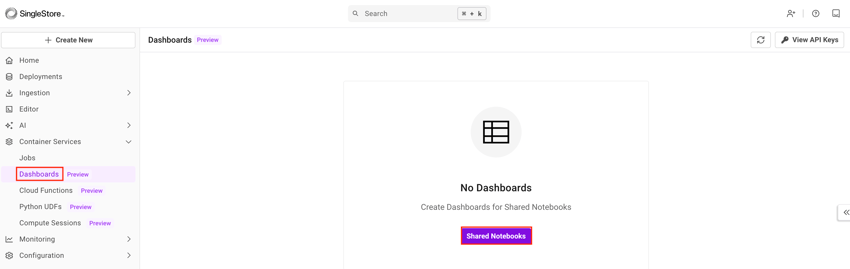
-
Using Shared Notebooks
-
Navigate to Editor > Shared.
-
Select a shared notebook.
-
Select Publish (on the top right).
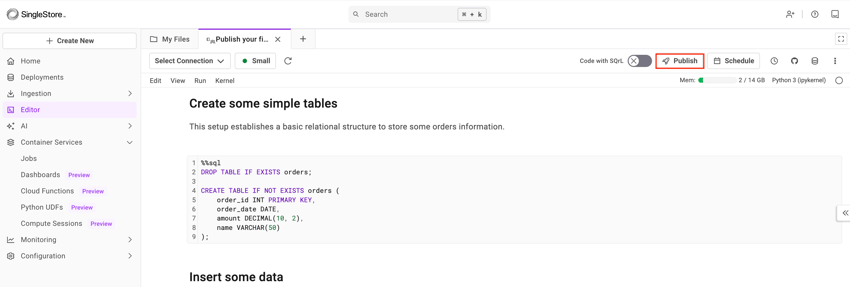
-
New Dashboard App
After selecting Publish, a new dialog box appears.
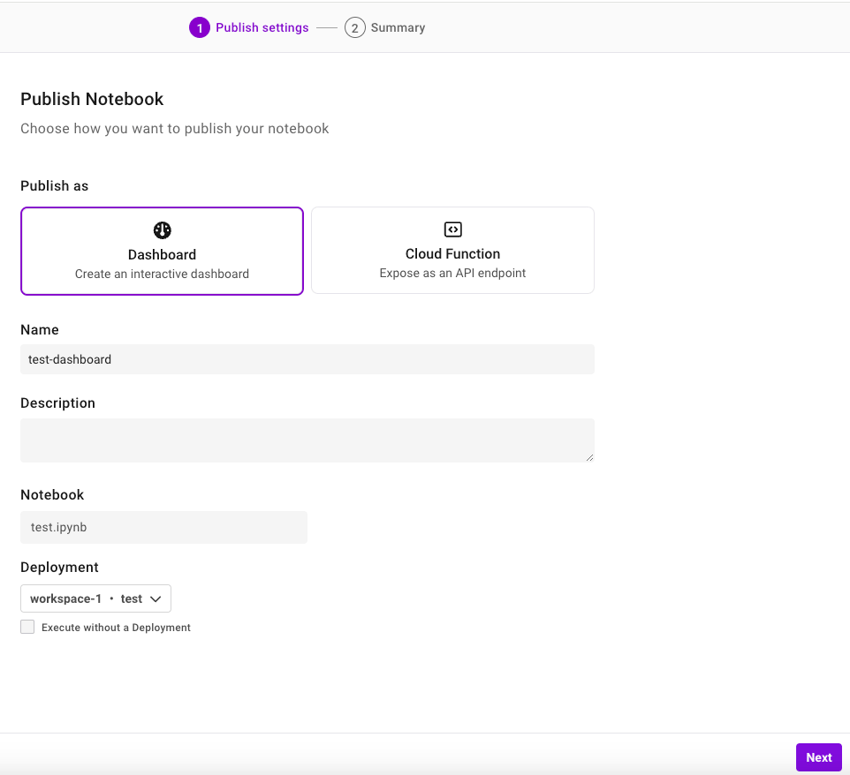
|
Publish Settings | |
|---|---|
|
Publish as |
Select Dashboard. |
|
Name |
Enter a name of the dashboard app. |
|
Description |
Enter the dashboard app description. |
|
Notebook |
Select a shared notebook to publish as a dashboard app. |
|
Deployment |
Select the SingleStore deployment (workspace) the notebook connects to. Selecting a workspace allows connecting to the SingleStore databases referenced in the notebook natively. |
|
Runtime |
Select a runtime from the following:
Note This field is in preview. |
|
Region |
Select a region. |
|
Idle Timeout |
Select an idle timeout. Note This field is in preview. |
Select Next.
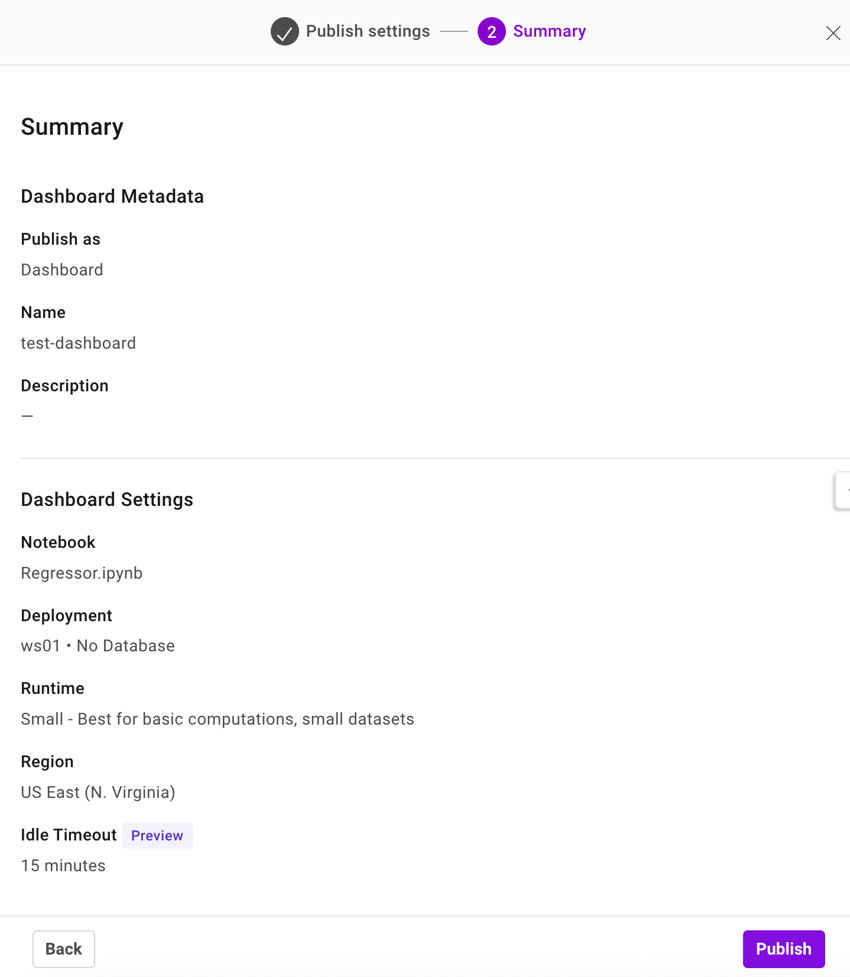
Select Publish to publish the notebook as a dashboard app.
Example Notebook
The following notebook shows how to publish your first dashboard app.

Publish your first SingleStore DashApp
Note
This notebook can be run on a Free Starter Workspace. To create a Free Starter Workspace navigate to Start using the left nav. You can also use your existing Standard or Premium workspace with this Notebook.
This Jupyter notebook will help you build your first real time Dashboard, showcasing how to leverage the ultra-fast queries of SingleStore to build a great visual experience using Plotly's DashApps.
Create some simple tables
This setup establishes a basic relational structure to store some orders information.
%%sqlDROP TABLE IF EXISTS orders;CREATE TABLE IF NOT EXISTS orders (order_id INT PRIMARY KEY,order_date DATE,amount DECIMAL(10, 2),name VARCHAR(50));
Insert some data
Lets now insert some time series data into the table.
%%sqlINSERT INTO orders (order_id, order_date, amount, name) VALUES(1, '2024-01-01', 150.00, "Laptop"),(2, '2024-01-01', 20.00, "Speaker"),(3, '2024-01-01', 60.00, "Monitor"),(4, '2024-01-02', 300.00, "Laptop"),(5, '2024-01-02', 100.00, "Laptop"),(6, '2024-01-02', 100.00, "Laptop"),(7, '2024-01-02', 25.00, "Speaker"),(8, '2024-01-02', 20.00, "Speaker"),(9, '2024-01-02', 75.00, "Monitor"),(10, '2024-01-03', 350.00, "Laptop"),(11, '2024-01-03', 150.00, "Laptop"),(12, '2024-01-03', 25.00, "Speaker"),(13, '2024-01-03', 35.00, "Speaker"),(14, '2024-01-03', 55.00, "Monitor"),(15, '2024-01-04', 120.00, "Laptop"),(16, '2024-01-04', 120.00, "Laptop"),(17, '2024-01-04', 30.00, "Speaker"),(18, '2024-01-04', 40.00, "Speaker"),(19, '2024-01-04', 25.00, "Speaker"),(20, '2024-01-04', 50.00, "Monitor"),(21, '2024-01-04', 70.00, "Monitor");
Importing logging module to enable live logs
import logging
Create a Connection Pool
Next, we use sqlalchemy to create a pool of sql connections to the workspace you have selected. We also define a method to execute queries using a connection from this pool.
from sqlalchemy import create_engine, textimport requestsca_cert_url = "https://portal.singlestore.com/static/ca/singlestore_bundle.pem"ca_cert_path = "/tmp/singlestore_bundle.pem"response = requests.get(ca_cert_url)with open(ca_cert_path, "wb") as f:f.write(response.content)sql_connection_string = connection_url.replace("singlestoredb", "mysql+pymysql")engine = create_engine(f"{sql_connection_string}?ssl_ca={ca_cert_path}",pool_size=10, # Maximum number of connections in the pool is 10max_overflow=5, # Allow up to 5 additional connections (temporary overflow)pool_timeout=30 # Wait up to 30 seconds for a connection from the pool)logging.info("Connection to workspace established successfully.")def execute_query(query: str):logging.info(f"Executing query: {query}")with engine.connect() as connection:return pd.read_sql_query(query, connection)
Create a line chart
You can create a line chart using plotly, to depict either of the following
- Number of items sold
- Total sales volume
import pandas as pdimport plotly.express as pximport plotly.graph_objects as godef generate_line_chart(type):if type == 'Count':df = execute_query("SELECT order_date, name, COUNT(*) as sales from orders group by order_date, name order by order_date")elif type == 'Total Value':df = execute_query("SELECT order_date, name, SUM(amount) as sales from orders group by order_date, name order by order_date")fig = px.line(df, x='order_date', y='sales', color='name', markers=True,labels={'sales': 'Sales', 'date': 'Order Date'},title='Sales Over Time')fig.update_layout(font_family="Roboto",font_color="gray",title_font_family="Roboto",title_font_color="Black",legend_title_font_color="gray")return figline_chart = generate_line_chart("Count")line_chart.show()
Create a pie chart
You can create a pie chart to see the contribution of each type of item to the daily sales volume
def generate_pie_chart(date):df = execute_query(f"SELECT name, SUM(amount) as sales from orders where order_date = '{date}' group by name")fig = px.pie(df,names='name',values='sales',hover_data=['sales'],labels={'sales': 'Total Sales', 'name': 'Type'},title='Total Cost by Item Type')return figpie_chart = generate_pie_chart("2024-01-01")pie_chart.show()
from singlestoredb import appsfrom dash import Dash, callback, html, dcc, Input, Outputdef get_order_dates():df = execute_query("select distinct order_date from orders order by order_date")return df['order_date']initial_dates = get_order_dates()# Create the Dash Appapp = Dash("Sales Report", requests_pathname_prefix=os.environ['SINGLESTOREDB_APP_BASE_PATH'])# Define the Layout of the Dash App. We will be defining# - A line chart depicting a time series of sales# - A dropdown that shows 'Count'/'Total Value' options, which is used to render different line charts# - An interval counter to keep pinging the Dash App server to get the latest dashboard# - A pie chart depicting the total proportion of sales for a day by item type# - A drop down showing the different dates, which is used to render different pie chartsapp.layout = html.Div([html.P('Sales Dashboard', style={'textAlign':'center', 'marginTop': 50, 'color': '#8800cc', 'fontSize': '32px', 'fontFamily':'Roboto'} ),html.Div([dcc.Interval(id='interval-component',interval=2 * 5000, # Update every secondn_intervals=0 # Start at 0),html.Div(dcc.Dropdown(['Count', 'Total Value'], 'Count', id='category-dropdown', style={'width': '200px', 'marginRight':'32px' }),style={'display': 'flex', 'justifyContent': 'flex-end'}),dcc.Loading(id="loading-spinner",type="circle", # Type of spinner: 'circle', 'dot', 'cube', etc.children=[dcc.Graph(figure = line_chart, id='line-chart'),]),html.Div(dcc.Dropdown(initial_dates, initial_dates[0], id='date-dropdown', style={'width': '200px', 'marginRight':'32px' }),style={'display': 'flex', 'justifyContent': 'flex-end'}),dcc.Graph(figure = pie_chart, id='pie-chart'),], style={'margin': '32px'})])# Define a callback to update the bar chart based on the category dropdown selection@app.callback(Output("line-chart", "figure"),Input("category-dropdown", "value")) # Use the stored valuedef update_bar_chart(type):return generate_line_chart(type)# Define a callback to update the pie chart based on the date dropdown selection@app.callback(Output("pie-chart", "figure"),Input("date-dropdown", "value"),Input('interval-component', 'n_intervals'))def update_pie_chart(date, n_intervals):return generate_pie_chart(date)# Define a callback to update the date dropdown periodically@app.callback(Output('date-dropdown', 'options'),Input('interval-component', 'n_intervals'))def update_date_dropdown(n_intervals):return get_order_dates()
Start the Dash App server
The link at which the Dash App will be available interactively will be displayed. You can also insert more data into the table and view the changes to the dashboard in real time.
connectionInfo = await apps.run_dashboard_app(app)
Publish Dashboard
After validating the Dashboard interactively, you can publish it and view the changes to your data in real time!

Manage an Existing Dashboard App
To view an existing dashboard app, select Dashboards in the left navigation.
-
View
-
Update
-
Share
-
Delete
View an Existing Dashboard App
To view an existing dashboard app, select the dashboard app name under the Name column.
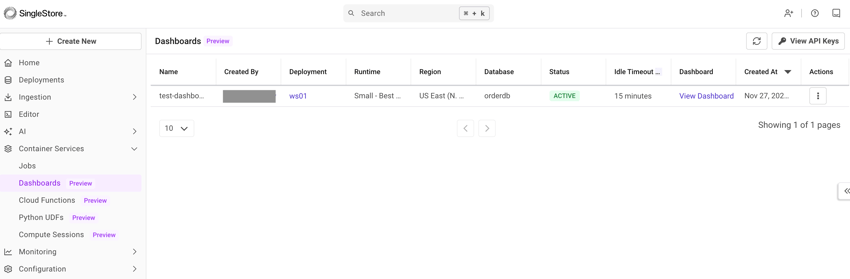
View the following details for each dashboard app:
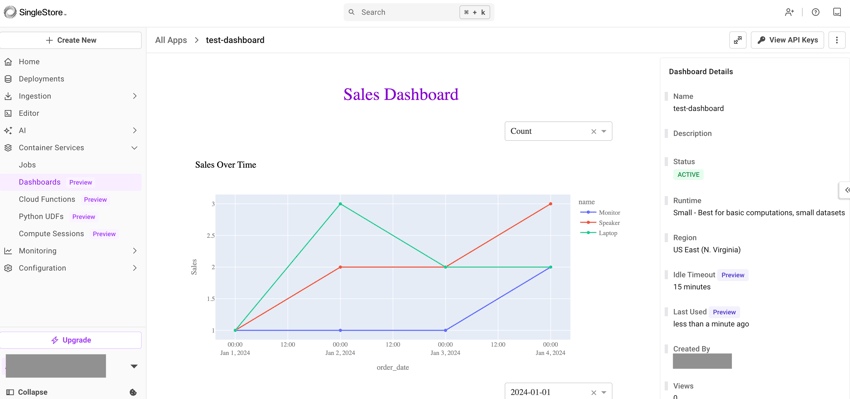
View the details of a dashboard app on the right navigation.
-
View Dashboard in New Tab
-
View API Keys
-
View Live Logs
-
Share
-
Update
-
Delete
View API Keys
Refer to Container App API Keys for related information.
View Live Logs
To view live logs of the selected dashboard app, select View Live Logs from the ellipsis on the right side.
Update an Existing Dashboard App
To update an existing dashboard app, select the ellipsis in the Actions column of the dashboard app, and select Update.
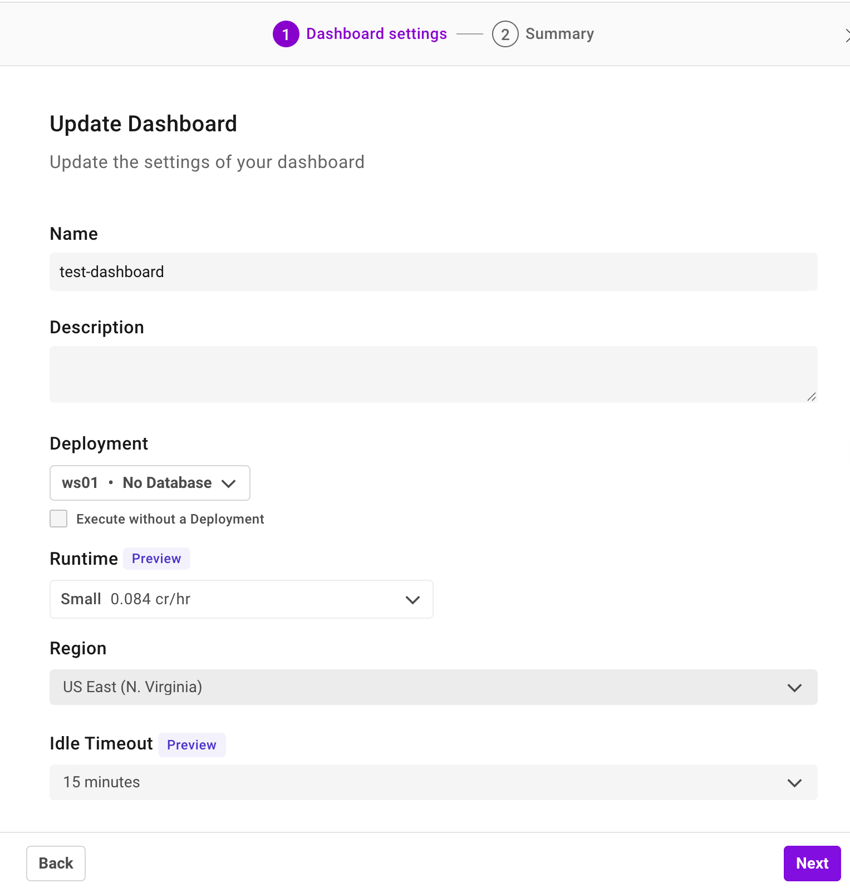
A dashboard app can also be updated using the shared notebook.
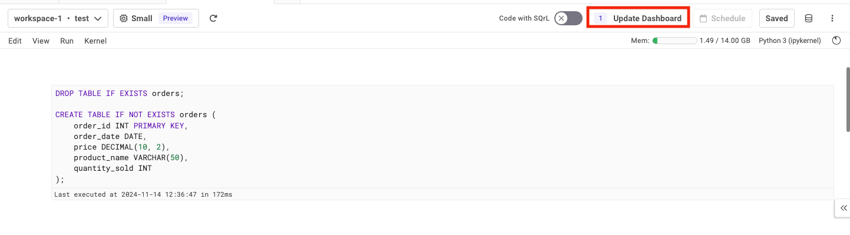
Select Update Dashboard and select Update.
Share an Existing Dashboard App
To share an existing dashboard app, select the ellipsis in the Actions column of the dashboard app, and select Share
Delete an Existing Dashboard App
To delete an existing dashboard app, select the ellipsis in the Actions column of the dashboard app, and select Delete.
Status of Dashboard Apps
|
Status |
Description |
|---|---|
|
Initializing |
The notebook is creating or updating the dashboard. |
|
Active |
The dashboard is configured correctly. |
|
Failed |
The dashboard is not configured correctly. |
|
Error |
An error unrelated to the notebook code prevented the dashboard from initializing. |
Troubleshoot Dashboard Apps
SingleStore automatically saves a snapshot of the notebook for each execution that fails.
|
Error |
Solution |
|---|---|
|
Workspace Deleted |
Update the dashboard and select a deployment. |
|
Workspace Suspended |
Resume the workspace or create a new dashboard with a different deployment. |
|
Database Detached |
Reattach the database with the right permissions or create a new dashboard with a different database. |
|
Notebook Deleted/Not Present |
Create a new dashboard with a different notebook. |
|
Internal Errors/Misc |
Reach out to SingleStore Support or use the chat feature in the Cloud Portal. |
Last modified: