

Important
The SingleStore 9.1 release candidate (RC) gives you the opportunity to preview, evaluate, and provide feedback on new and upcoming features prior to their general availability. In the interim, SingleStore 9.0 is recommended for production workloads, which can later be upgraded to SingleStore 9.1.
Connect Power BI Desktop to SingleStore
On this page
In addition to navigation-based data ingestion, Power BI also supports native database queries for the SingleStore connector which enables you to build reports using native SQL queries.
Refer to Import data from a database using native database query for related information.
Note
Existing reports created using the SingleStoreODBC. connector function call continue to be supported.
To create a report in Power BI Desktop:
-
In the Home ribbon, select Get Data > More.
-
In the Get Data dialog, select SingleStore Direct Query Connector.
-
In the connection configuration dialog, enter or select the following:
-
Server: Enter the IP address or the hostname of the SingleStore cluster.
-
Database: Enter the name of the SingleStore database to connect with.
-
Data Connectivity mode: Select Import or DirectQuery.
-
(Optional) To ingest data using a native database query, enter the SQL query in the Native query box.
-
-
Select OK.
-
In the connector dialog, in the left pane, select the authentication type (Windows or Basic).
-
For Windows authentication, set up a SingleStore server for Kerberos authentication.
Then, in the connector dialog, select the Connect button. Note
You need to run Power BI with the user account that maps to the SingleStore user.
Therefore, if the Windows user is 'administrator'@domain, then the database user must be 'administrator'. You may need to create the database user. -
For Basic authentication, enter the username and password of the SingleStore database user with which to connect to to SingleStore, and select Connect.
-
-
After authentication, perform one of the following:
-
For navigation-based data import: Select the tables to import in the Navigator dialog.
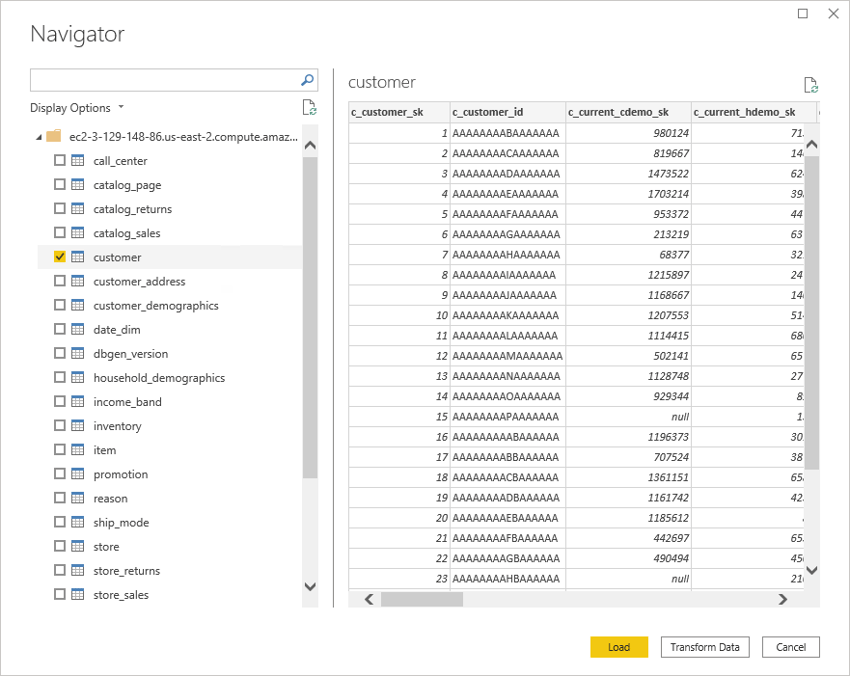
-
For native database query: Verify the results in the preview.
-
-
Select Load.
Alternatively, you can select Transform Data to apply transformations before loading the data.
You can now use Power BI Desktop to explore your data.
To update the existing reports, select the Refresh button on the Home ribbon.
Limitations of Native Database Queries
-
To create a custom SQL report using the connector, the user must only have read-only access to the SingleStore databases.
-
DDL queries are not supported.
-
If the SQL query is specified outside the connector dialog (the connection configuration step), Power BI may prompt you to approve the query for your credentials.
Refer to Limitations and issues for more information.
Modify Credentials
To modify the credentials used to connect to SingleStore.
-
In the File ribbon, select Options and settings > Data source settings.
-
In the Data source settings dialog, select the connector, and then select Edit Permissions.
Last modified: